
Creative work
Try directions, then decide.
Save a state, explore freely, and compare before you commit.
We know the _final_FINAL_fix2_DO_NOT_DELETE folder.Snapshots for the messy middle — binaries, assets,source files. Local, offline. Save now, think later.
Text, binaries, assets, large files — no exceptions. No server. No setup. No special handling.
01
Every save becomes a snapshot. Nothing overwrites, nothing disappears. Keep working, then come back whenever you need.
02
100 GB project, 50 snapshots — not 5 TB. Only the changes are stored, so repeated saves stay lean.
03
Not just undo. Restore any snapshot exactly as it was, or extract only the files you need.
04
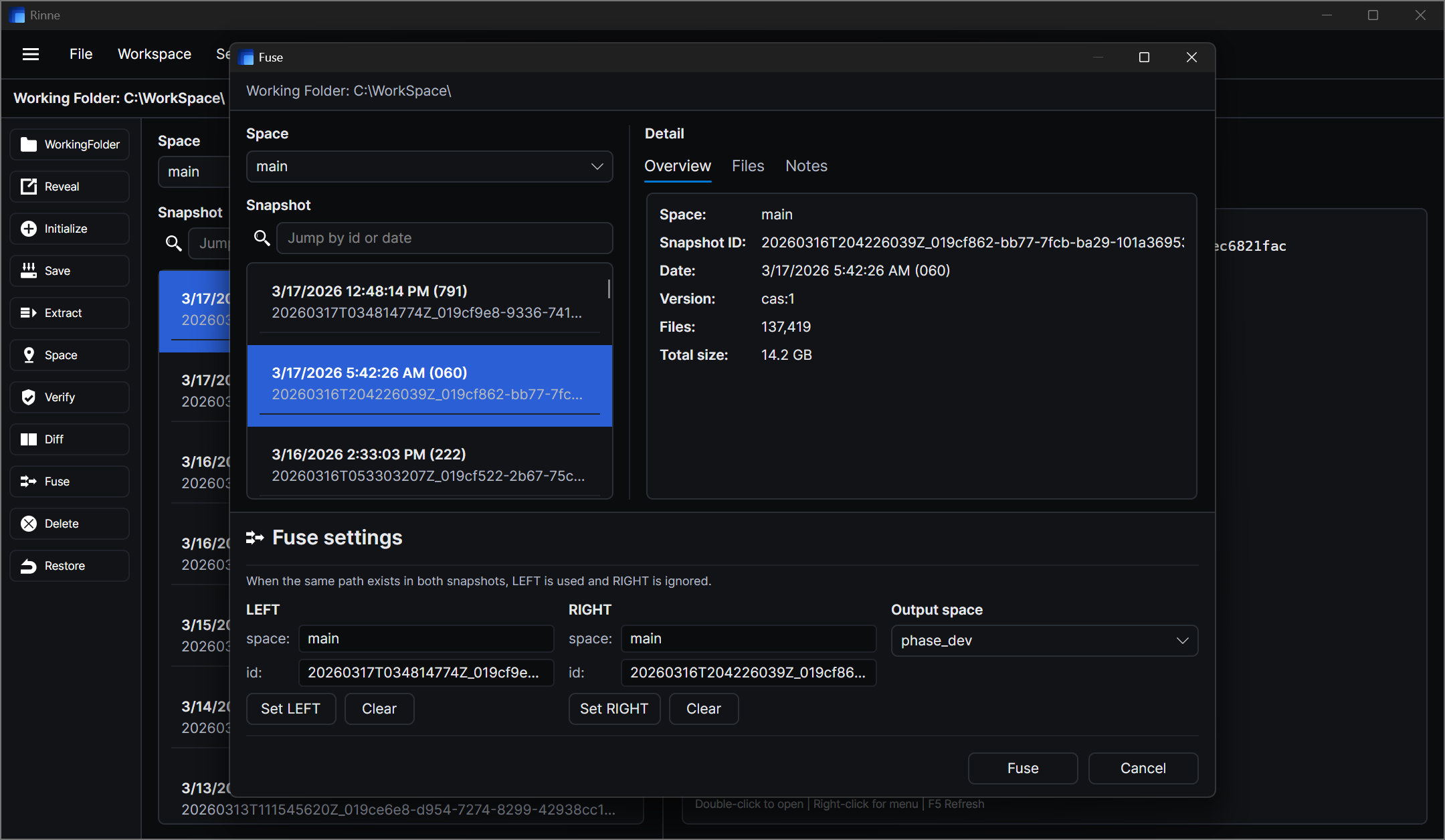
Combine two snapshots into a new one. Both originals stay untouched.
One setup. Then just save.
First save may need ignore rules for temp files, caches, build outputs, or locked files.Read docs
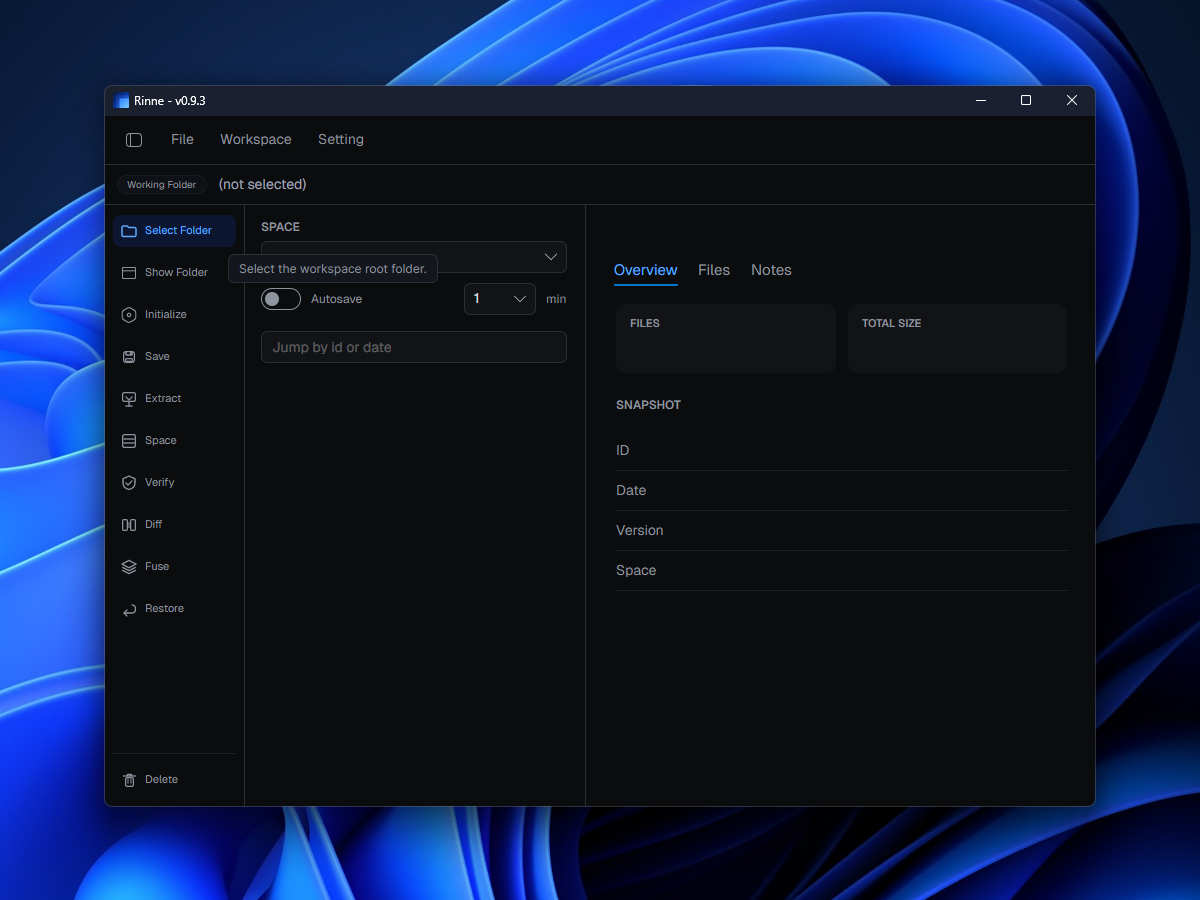
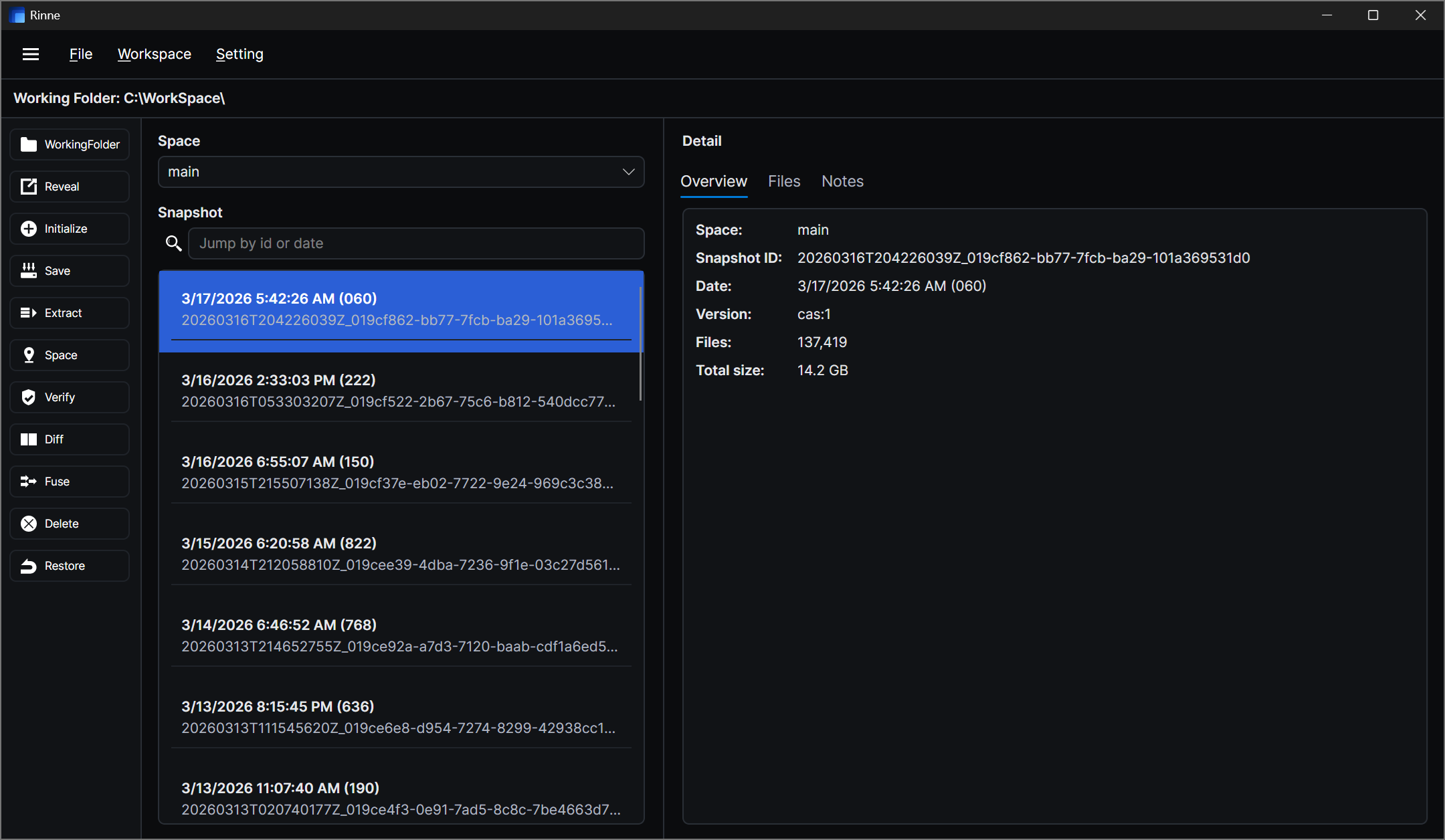
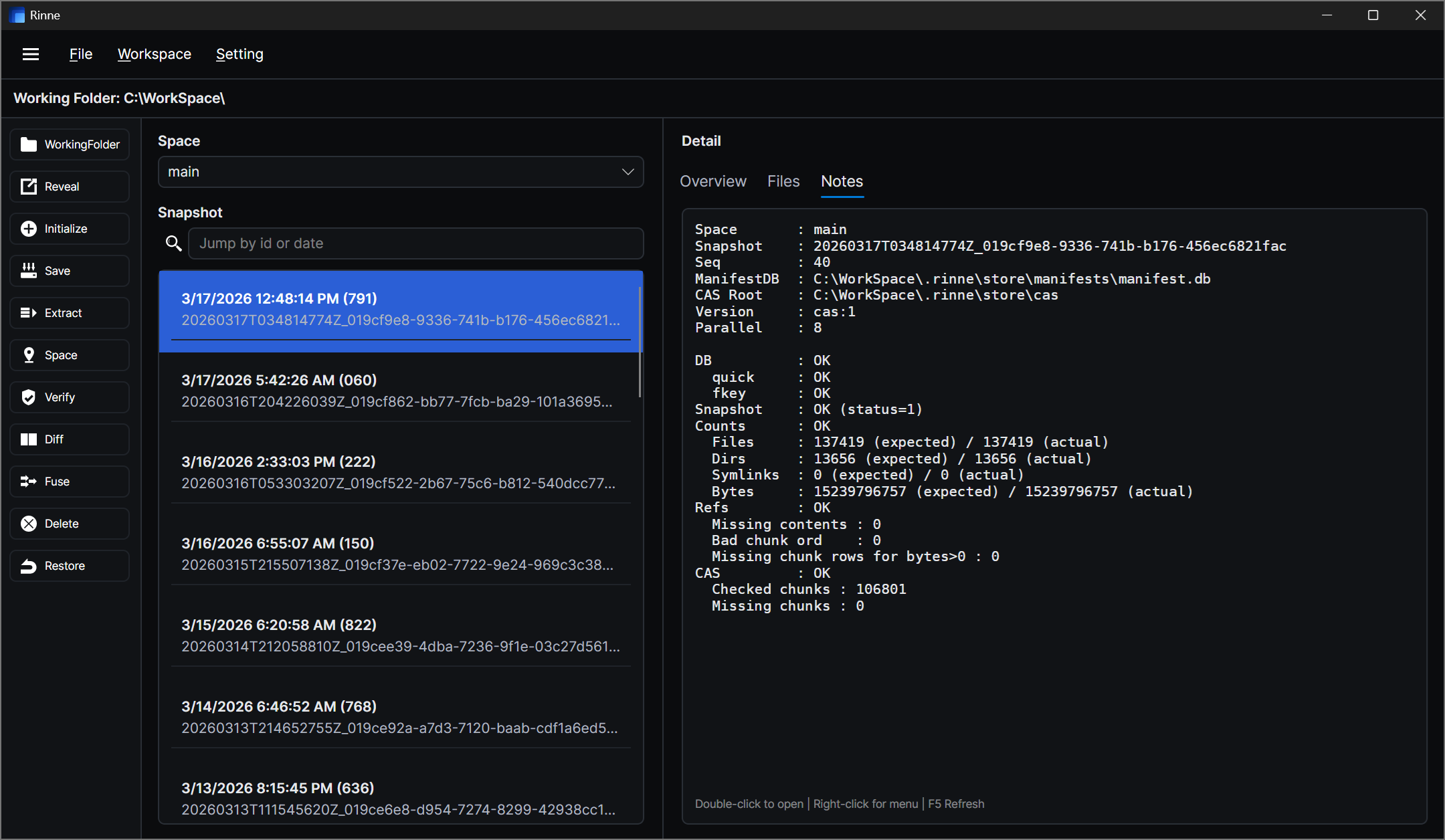
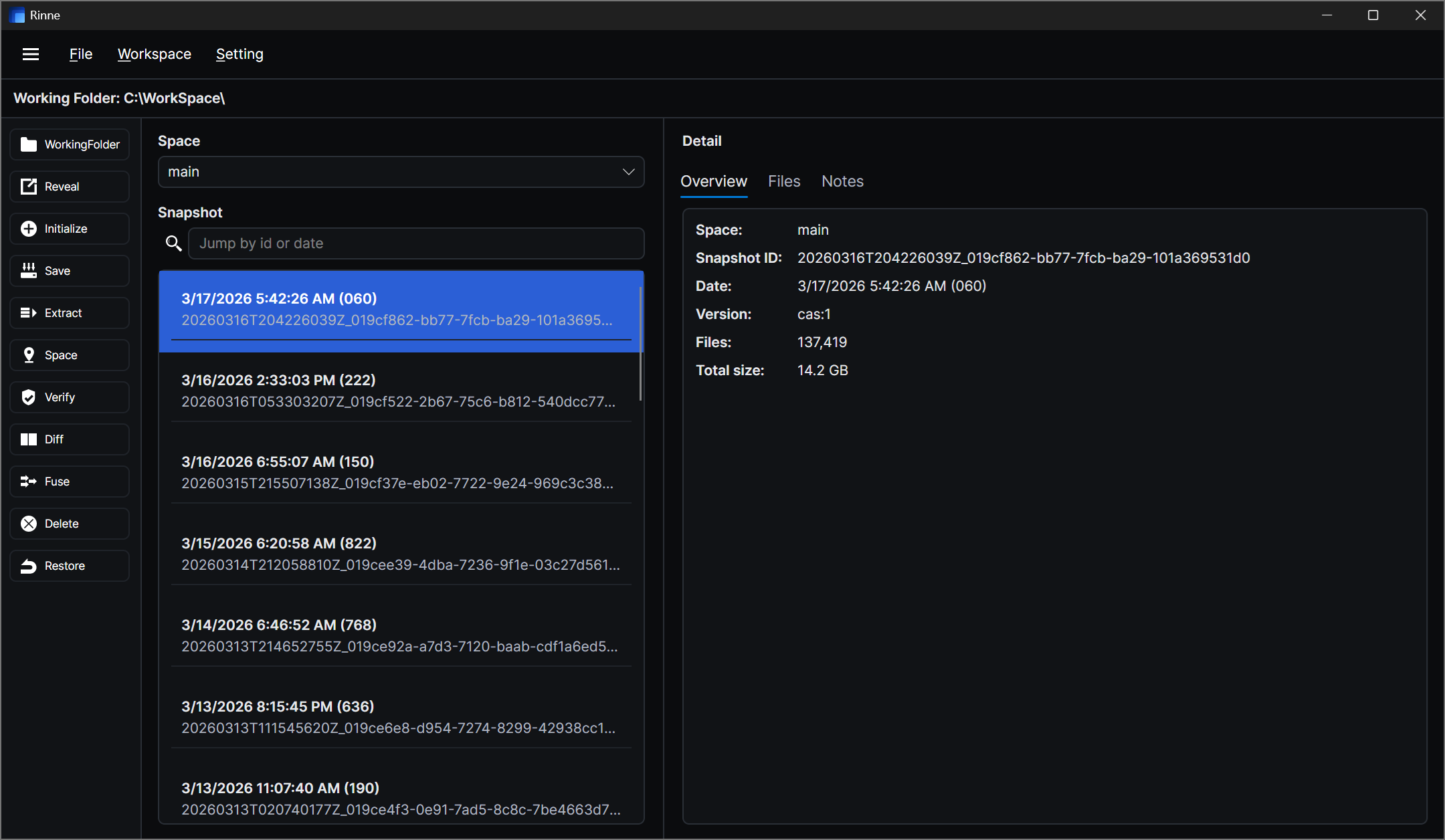
Browse timelines, save snapshots, compare changes — all in one place.
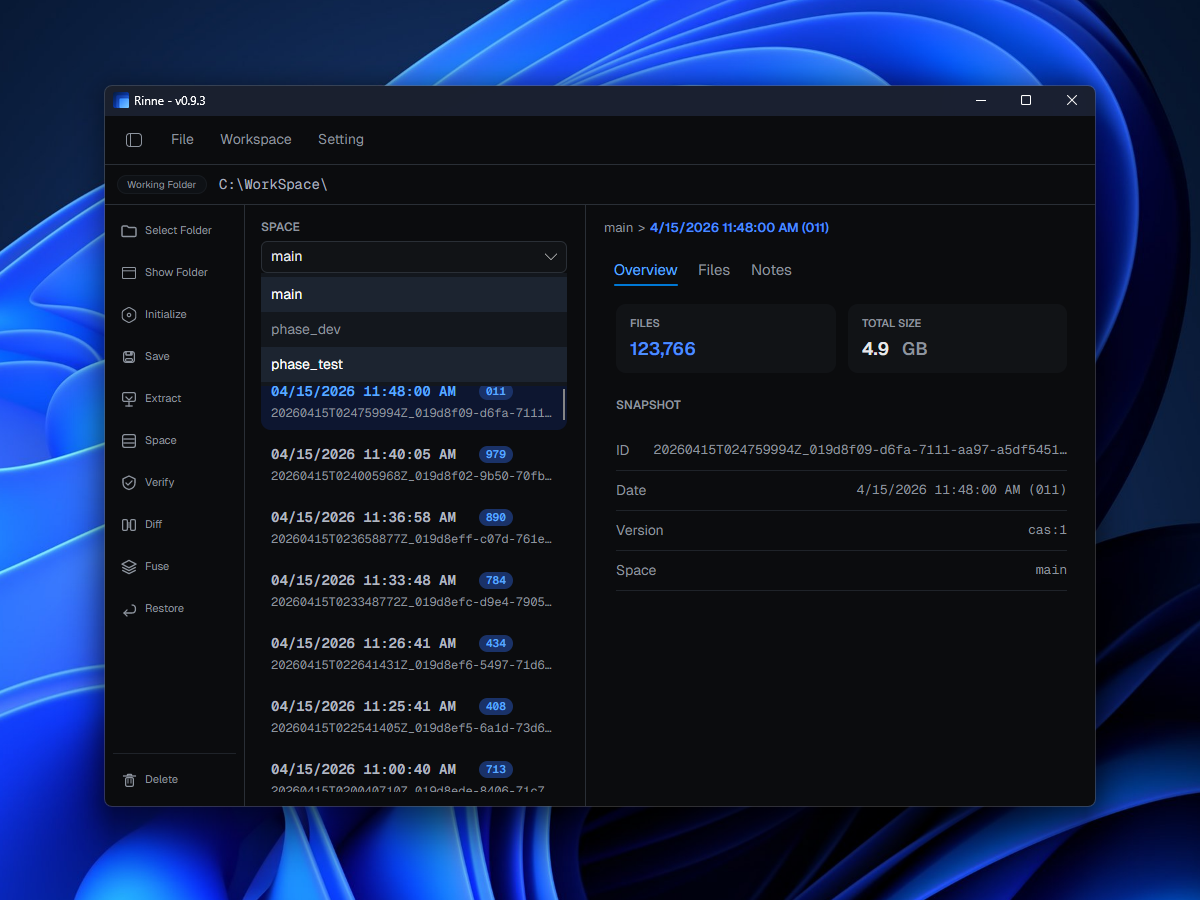
Browse through snapshot history or switch Spaces without losing context.
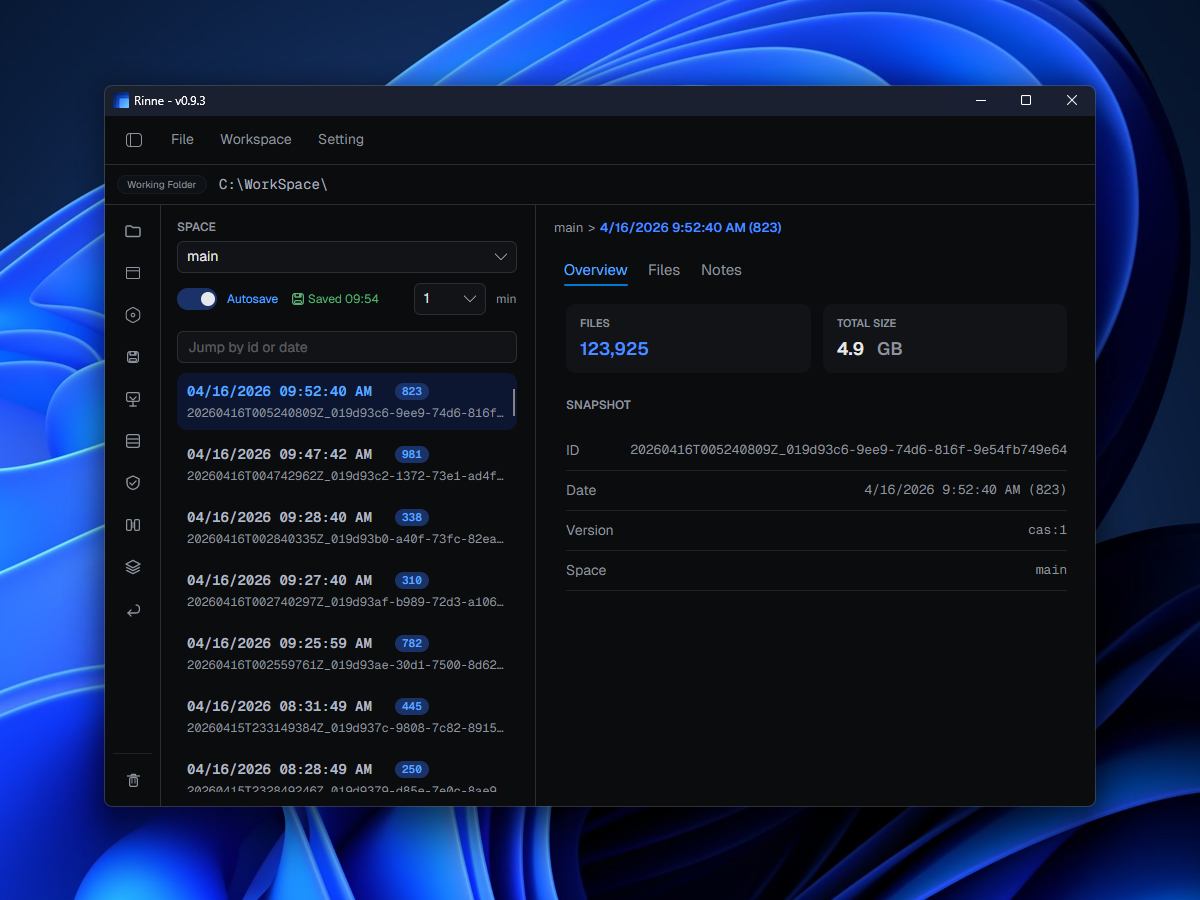
Browse through snapshot history without losing context.
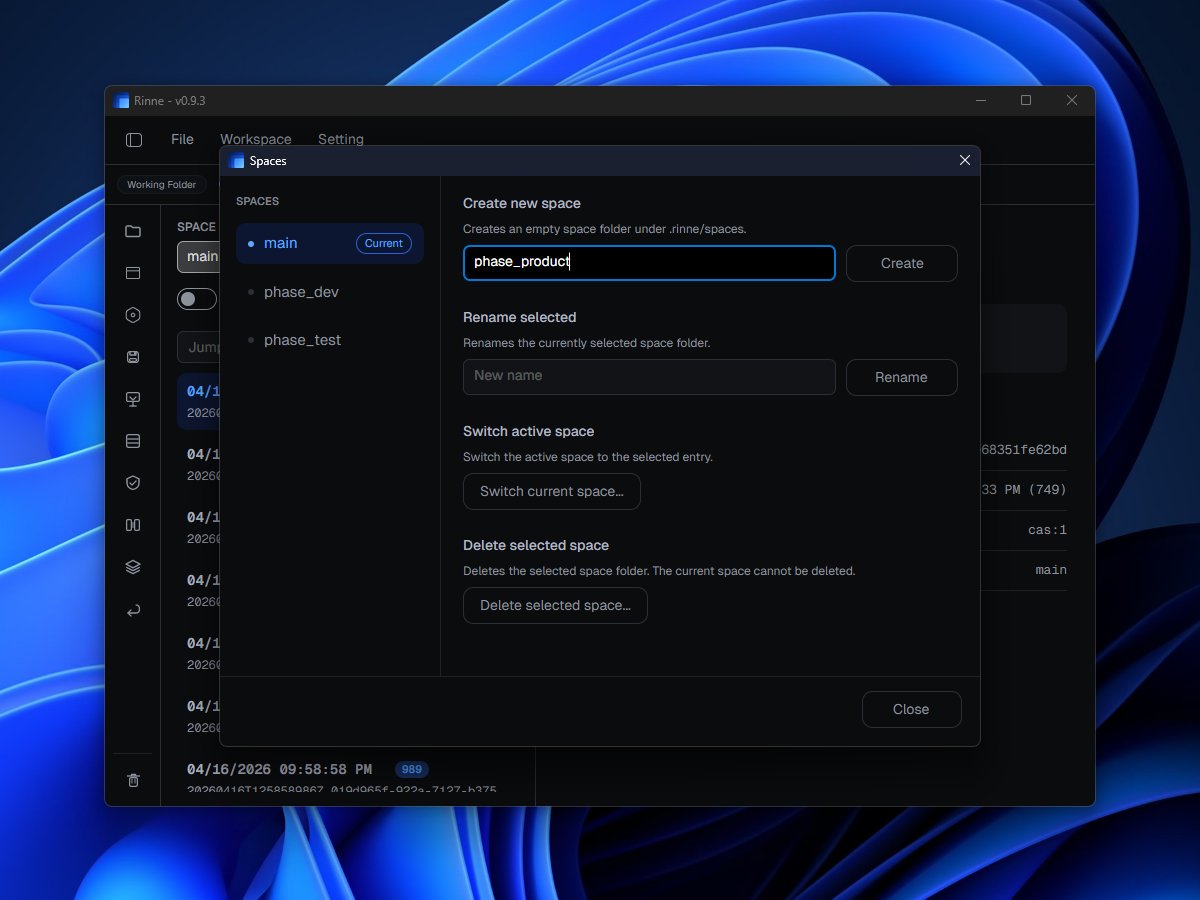
Create and switch Spaces when one workspace needs separate timelines.
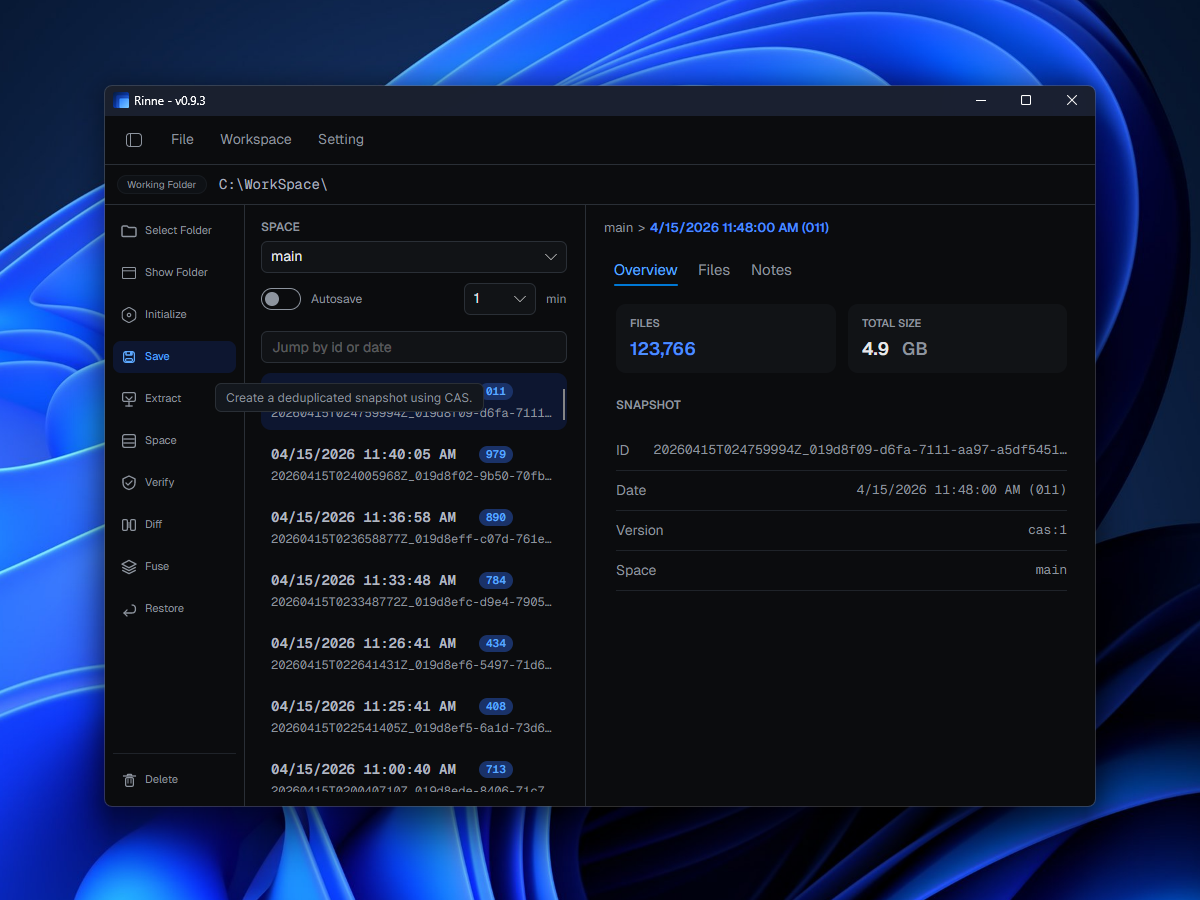
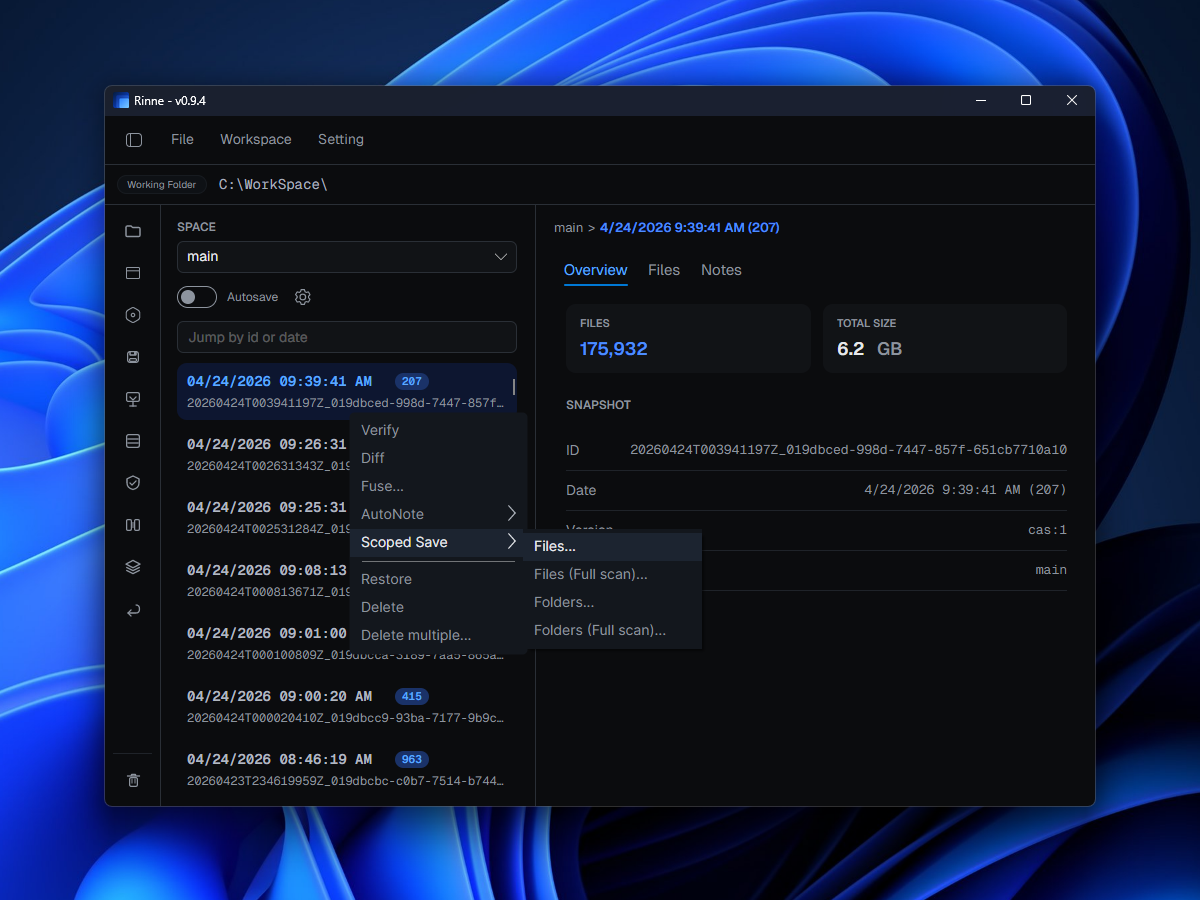
Switch between full saves, scoped saves, and lightweight automation without leaving the same lane.
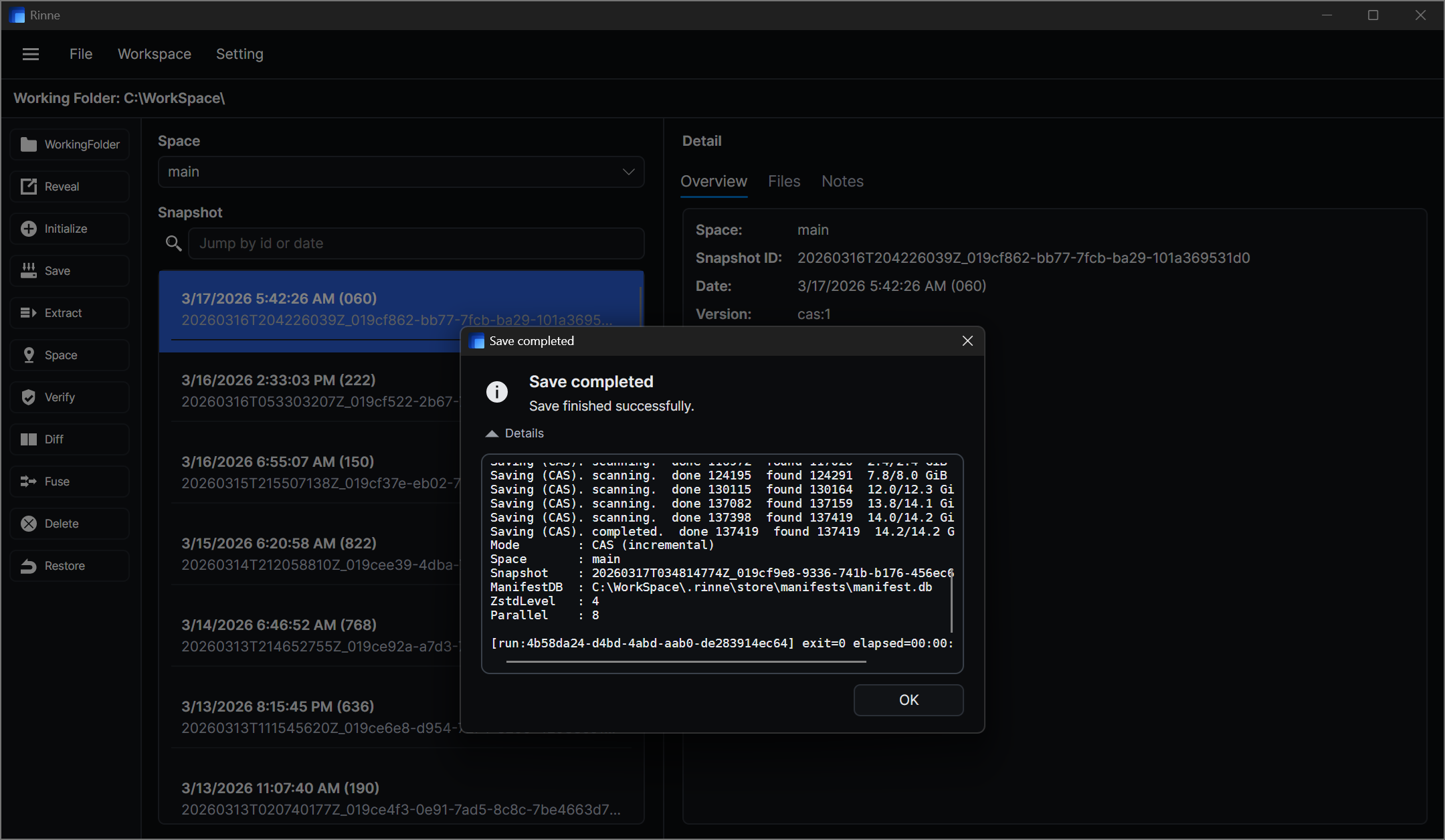
Record the current state in one click whenever you want a clean checkpoint.
Save only the selected files or folders when the work is local to a specific area.
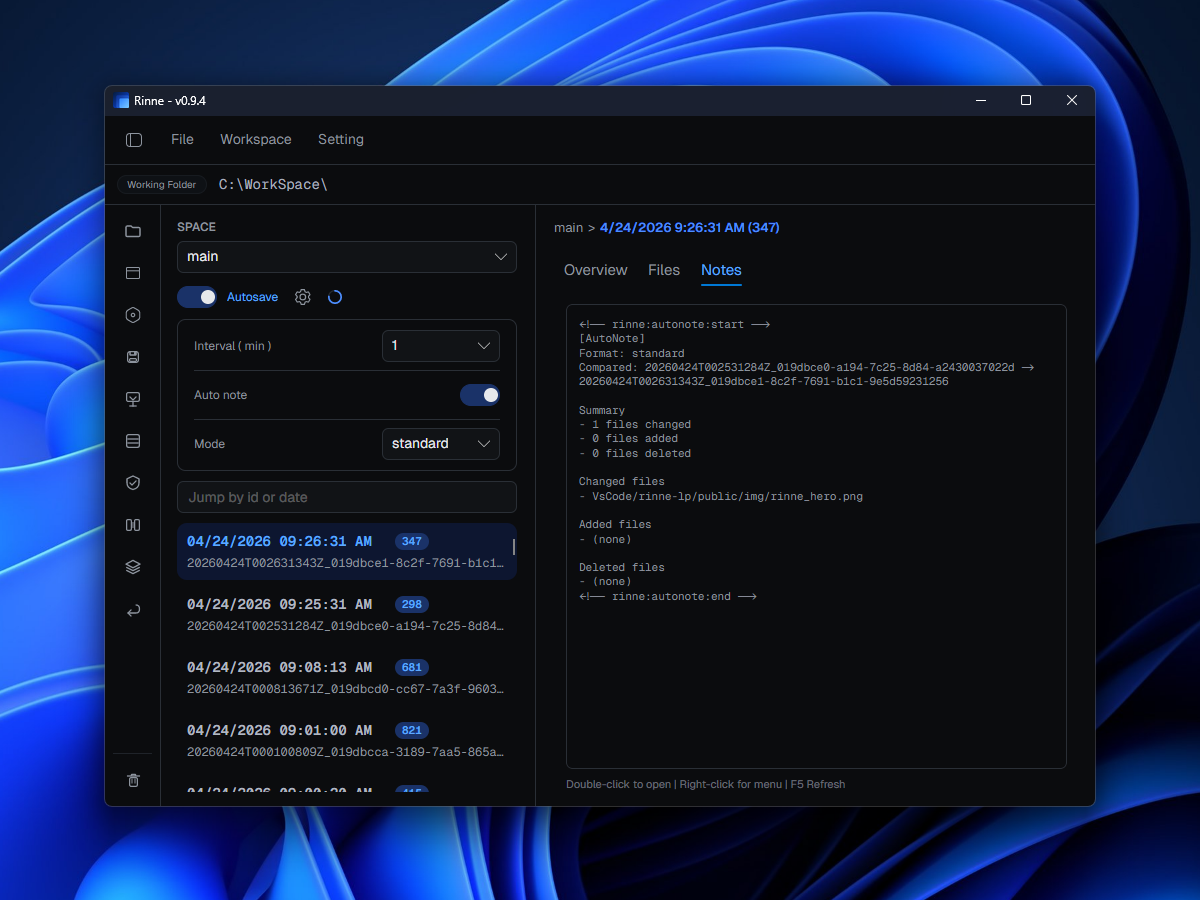
Pick a time interval from the dropdown, turn Autosave on, and keep working.
Keep human notes and generated change summaries next to the history itself.
Add Markdown notes whenever a snapshot needs context.
Generate a fact-based note from the diff between two snapshots and write it to the primary snapshot.
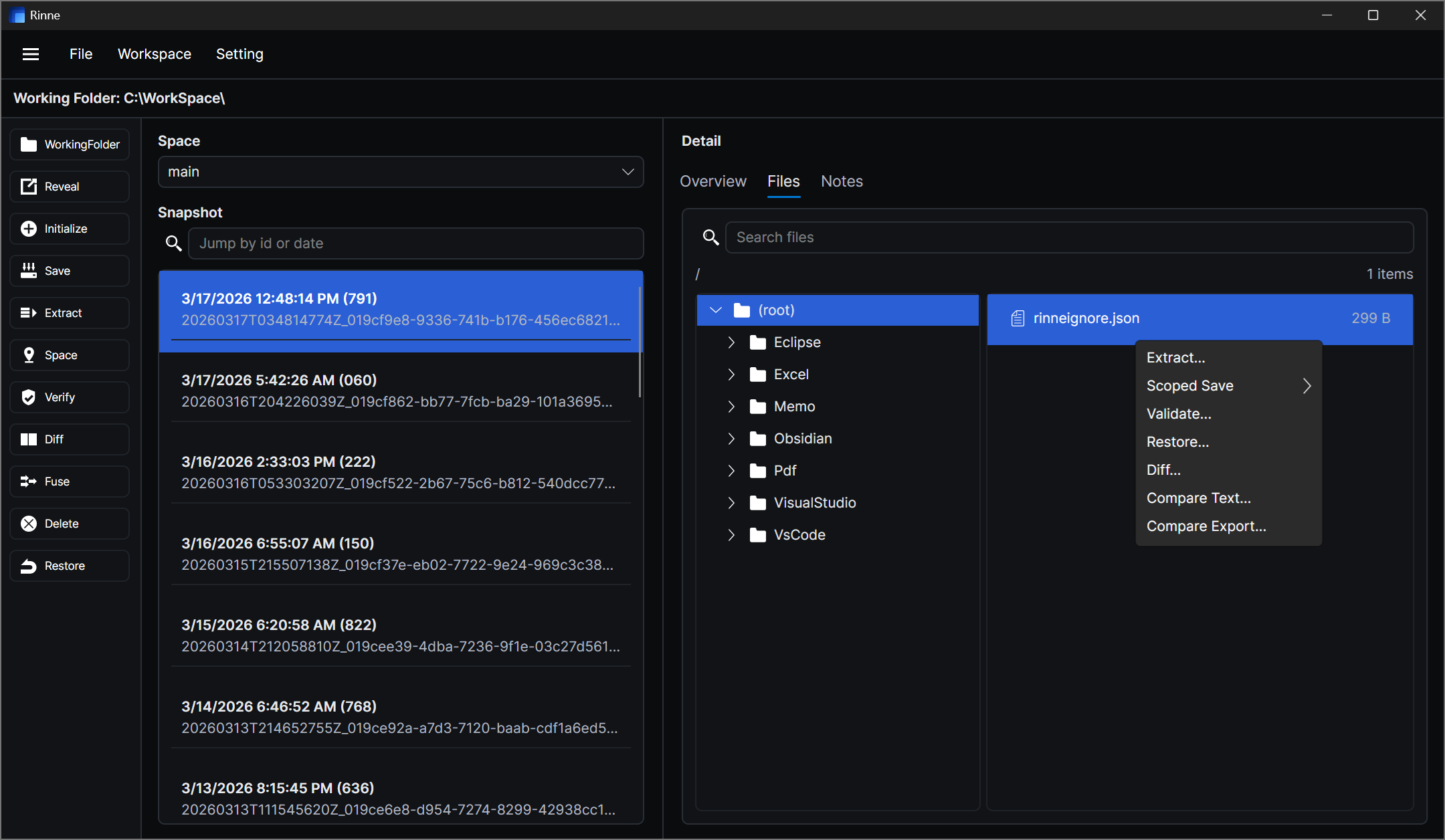
Bring back the whole snapshot or only the paths you need.
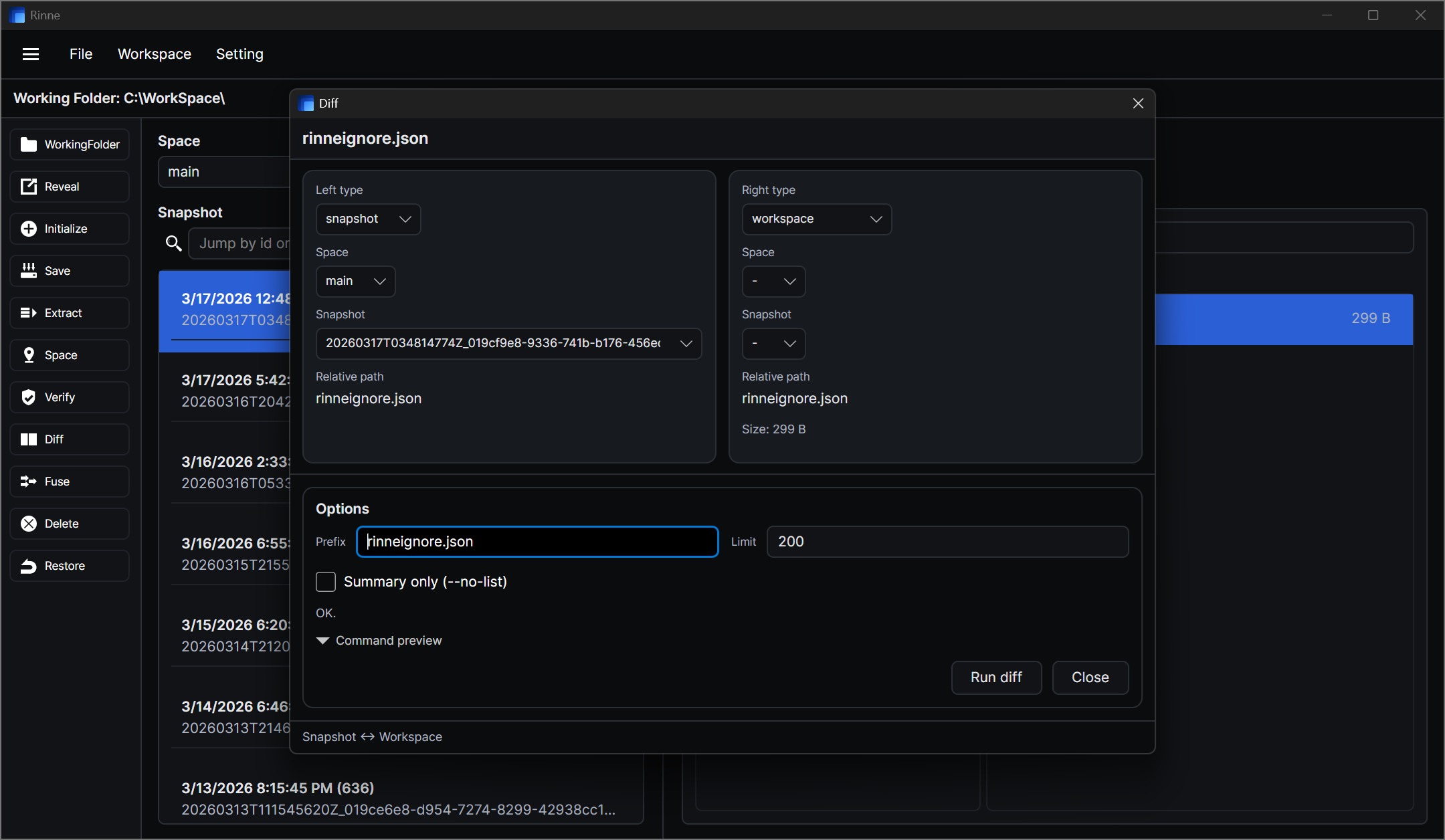
Move across snapshot diffs, text diffs, and export paths from one comparison lane.
Check differences across snapshots, folders, and files by hash.
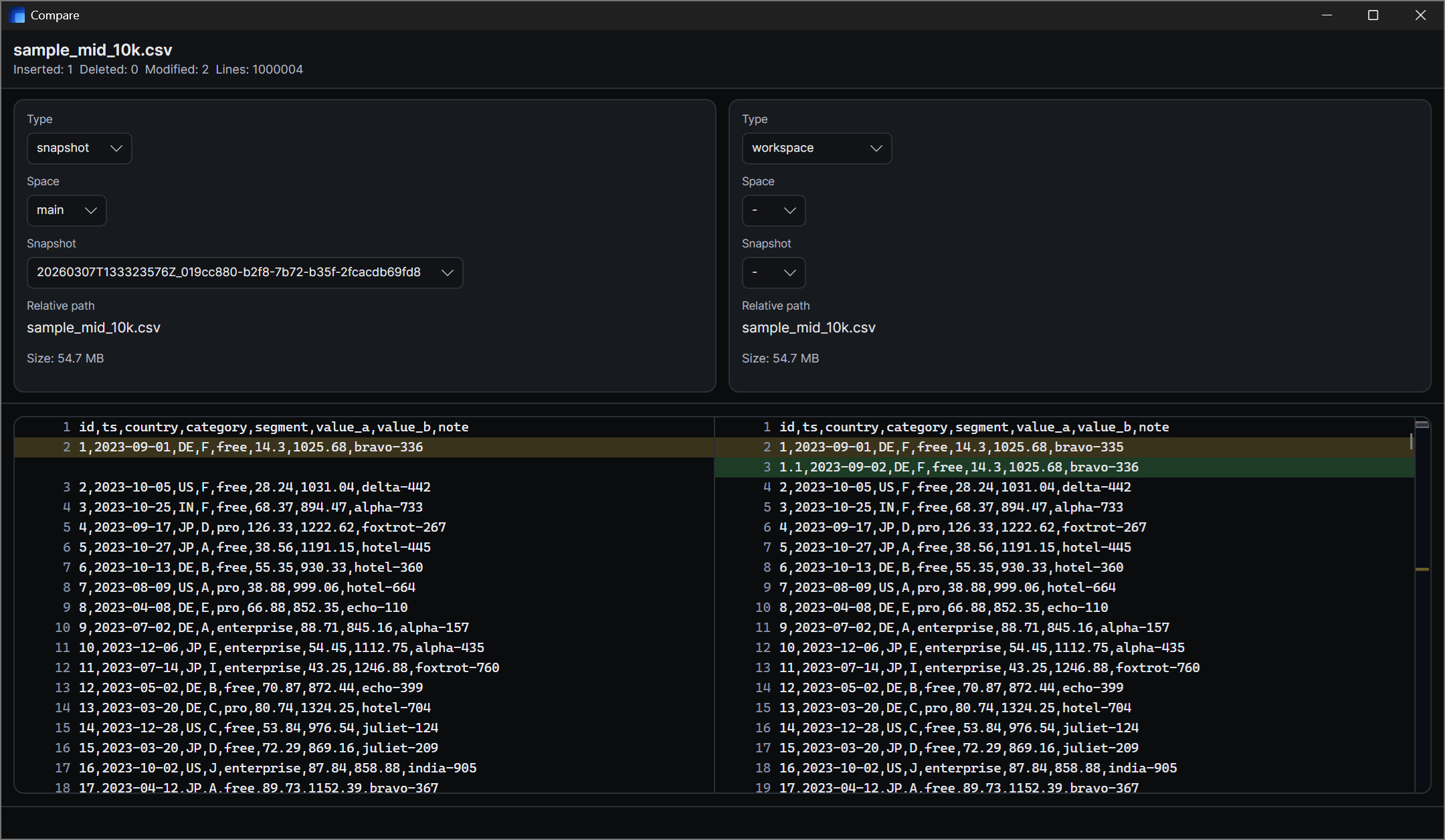
Inspect edits or rewrites side by side.
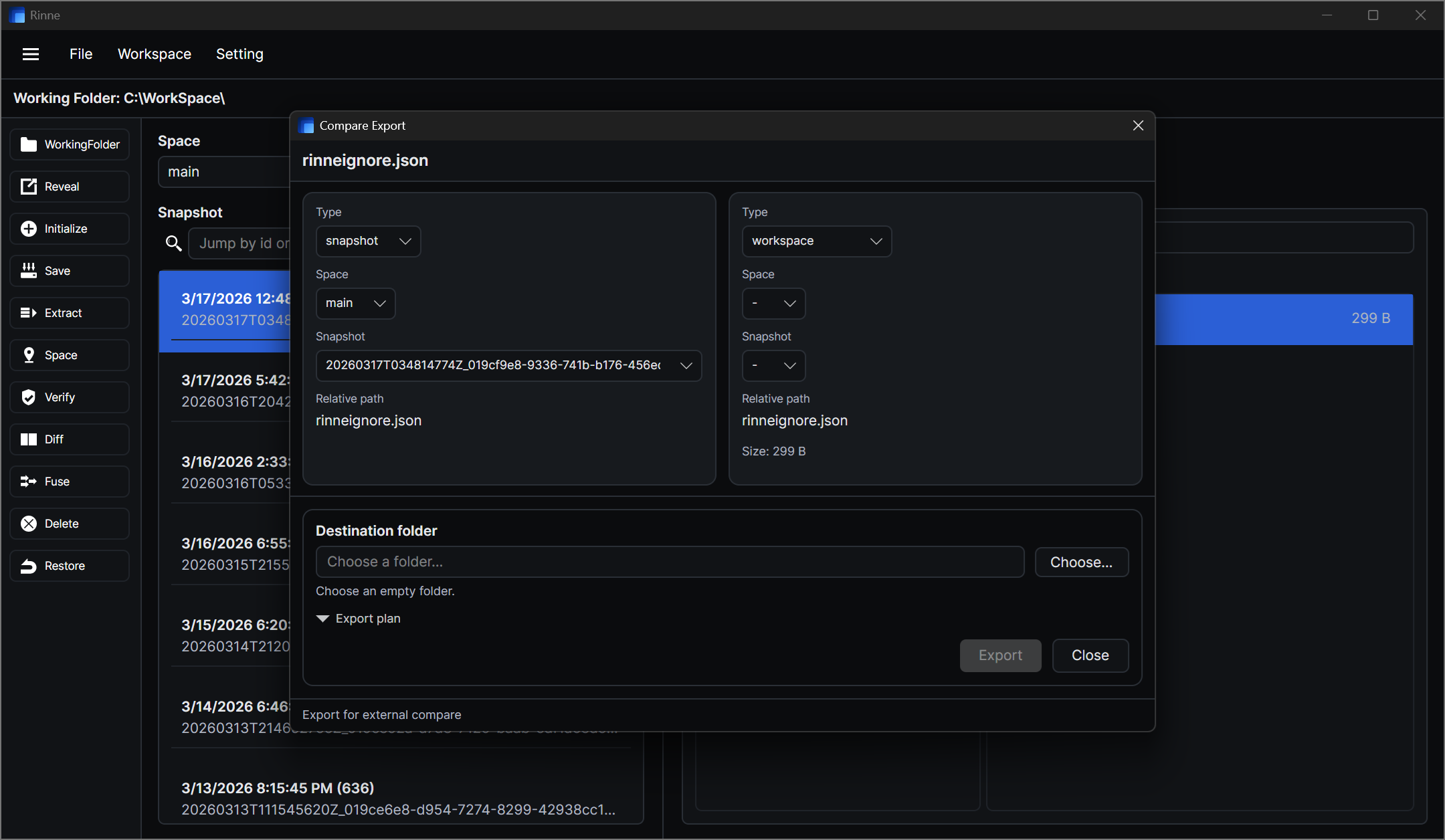
Export selected paths when you want an external diff.
Layer snapshots to create new ones when paths overlap.
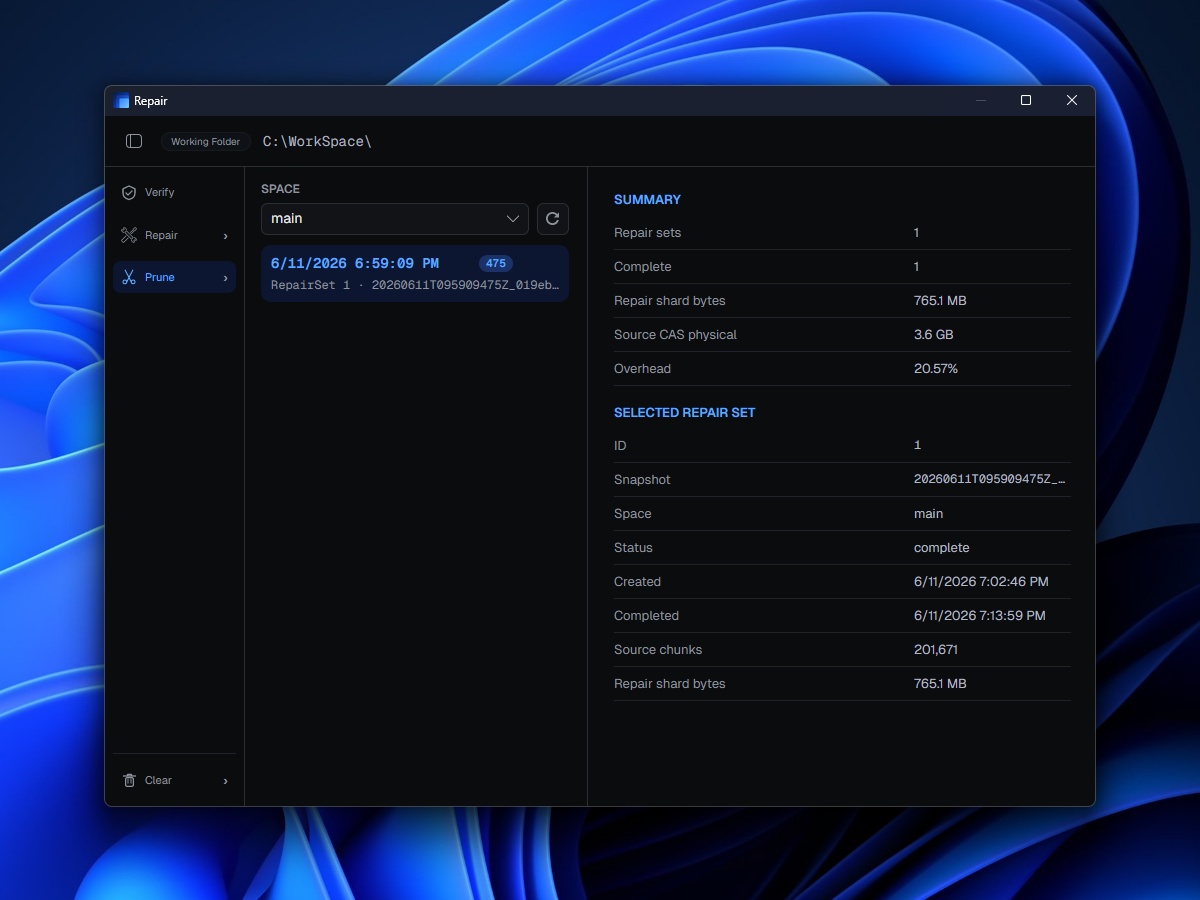
Use prepared repair data to recover missing or corrupted snapshot chunks when the damage is within recoverable limits.
For work that changes often and still needs a way back.
Save a state, explore freely, and compare before you commit.
Version binaries, assets, exports, and code together, all locally.
Go back with confidence whenever you need to.
Chunk-deduplicated and compressed.
One phase, one space. Clear, independent, easy to follow.
Use the right diff for the job.
Layer snapshots. Higher priority wins.
Export selected paths. Restore full states anytime.